To set up the two-factor authentication code, use the Secirity settings section in the Members area (Members Area > Profile > Security settings).
On the Security settings page, find the two-factor authentication section and click Enable. In the additional window that will appear, click on the blue button “Send code”.
Enter the 5-digit code that will be sent to your phone number, indicated in the Members Area in the corresponding field and click Confirm. (Note: If your phone number is not verified, the code will be sent to your e-mail. Enter the code from the letter in your mailbox and click Confirm.)
You can customize the options for which you will need a two-factor authentication code: confirmation of funds withdrawal application, confirmation of internal transfer request, login to your Members Area. Please, check the boxes of the options you would like to enable.
Lower on the page, you will see the instructions for enabling the authentication. Download the StocksTrader application, or any other that you want to use for code generation (R MobileTrader, Google Authenticator, etc.).
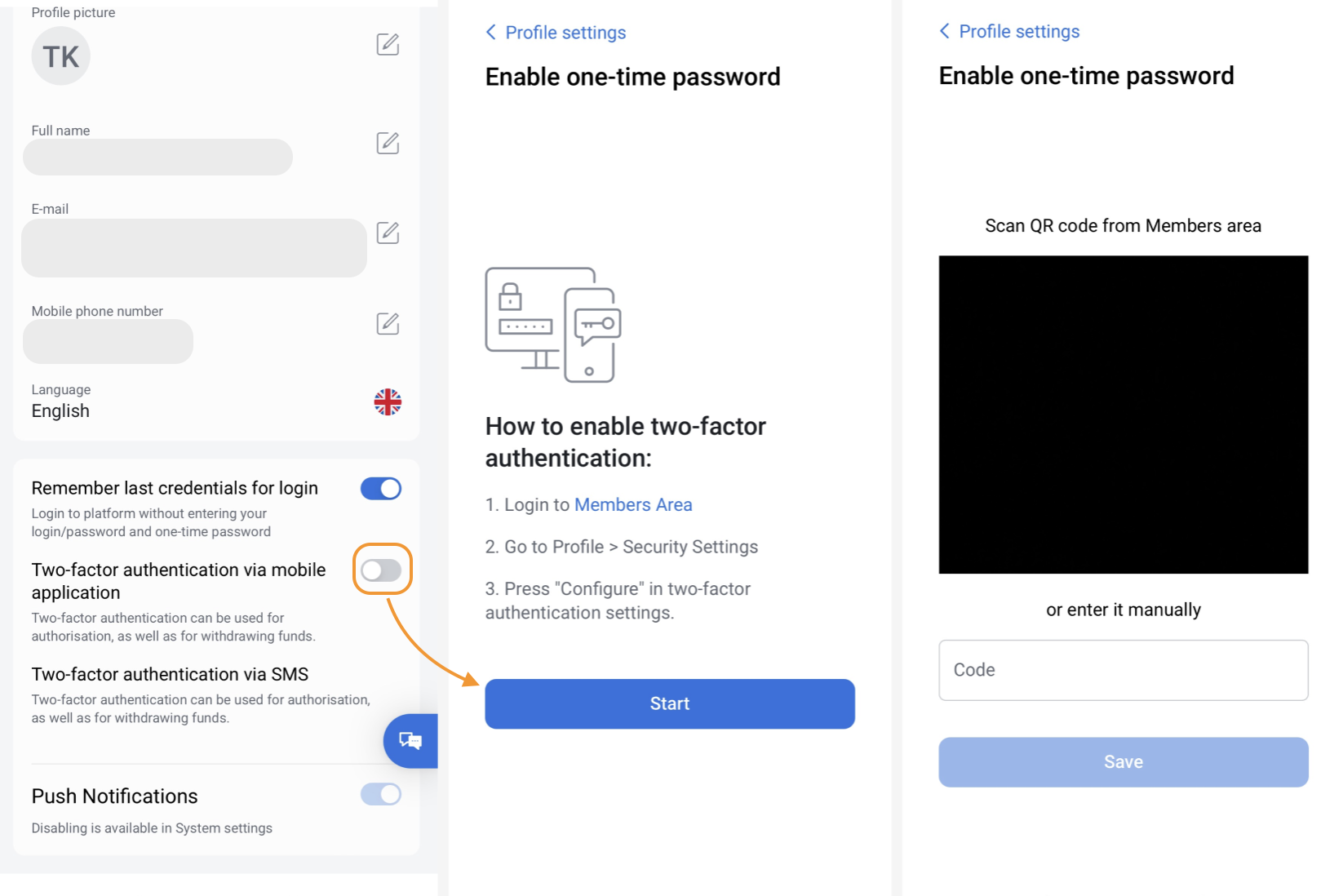
Start the StocksTrader application, open the More section and scroll the page down until you see the General settings option. Open the General settings and then tap on the Profile settings. Toggle on the option “Two-factor authentication via mobile application”. In the window that will appear, read through the steps and press “Start”. Allow the application to take photos and records videos to be able to scan the code. Scan the QR code from your Members Area or copy and paste the written code in the field, then choose Save.
After that, a new tab will appear: Generate one-time password in the More section of the application. Tap on it to see the automatically generated code. The code is visible for a certain period of time, you will see the timer on the circle around the code.
This generated code should be used to confirm the authentication request in your Members Area > Security settings. Enter it in Step 3, the field “Enter the confirmation code from your mobile application”. When everything is done, you will get a notification that the two-factor authentication is updated.
From now on, the two-factor authentication code will be in your StocksTrader application.
Notable aspects:
- You can customize the two-factor authentication or disable it anytime, only if you have access to the Members Area and two-factor authentication code in the mobile application (StocksTrader mobile app if you enabled it via StocksTrader).
- If you see a “Scan QR code” window instead of the code, please contact the Customer Support to disable two-factor authentication.
- In cases when the application is deleted or re-installed, there is a possibility that the code is lost. Since there are no back-up codes, please, contact the Customer Support to disable two-factor authentication.