You can find the Trendline tool in the drawing tools panel above the chart.
To draw a trendline:
1. Select the Trendline icon.
2. Click on the chart and drag the line between the desired points.
3. Repeat the process to add additional trendlines.
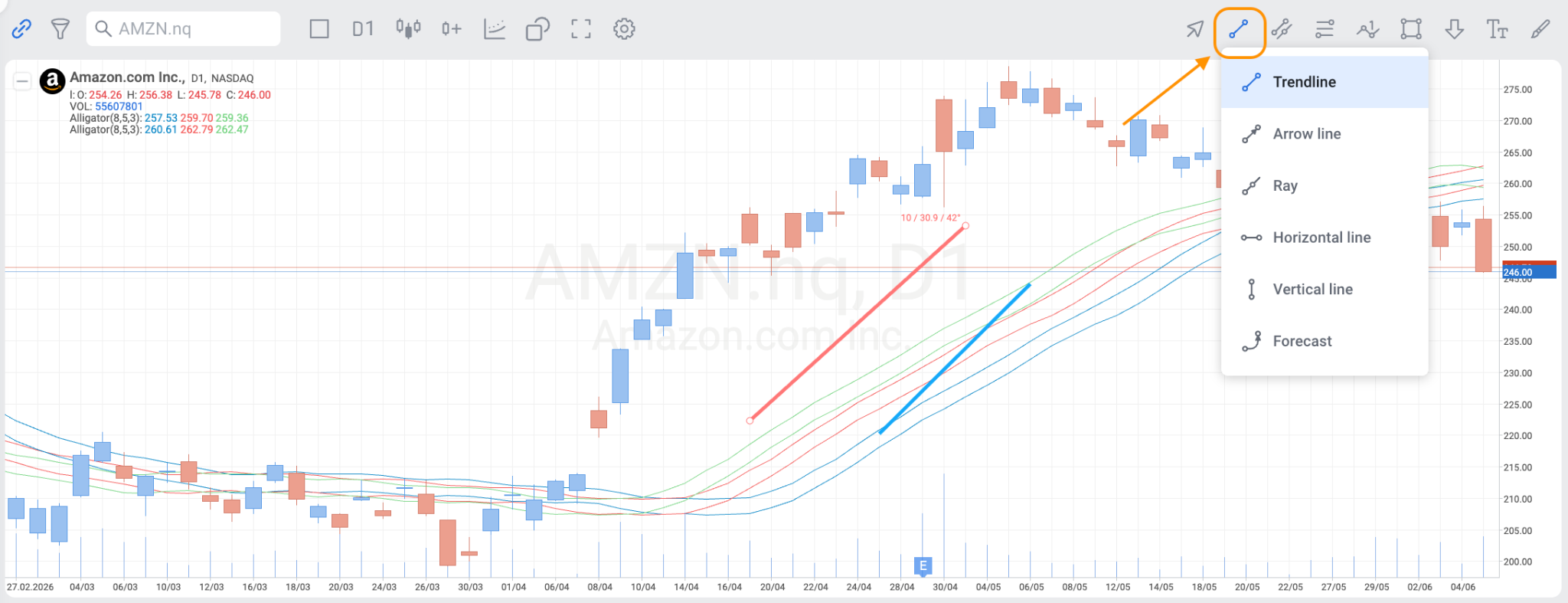
You can add and display multiple trendlines on the same chart simultaneously. Trendlines remain visible when switching between timeframes for the same instrument.
To edit a trendline:
1. Right-click the trendline you want to modify.
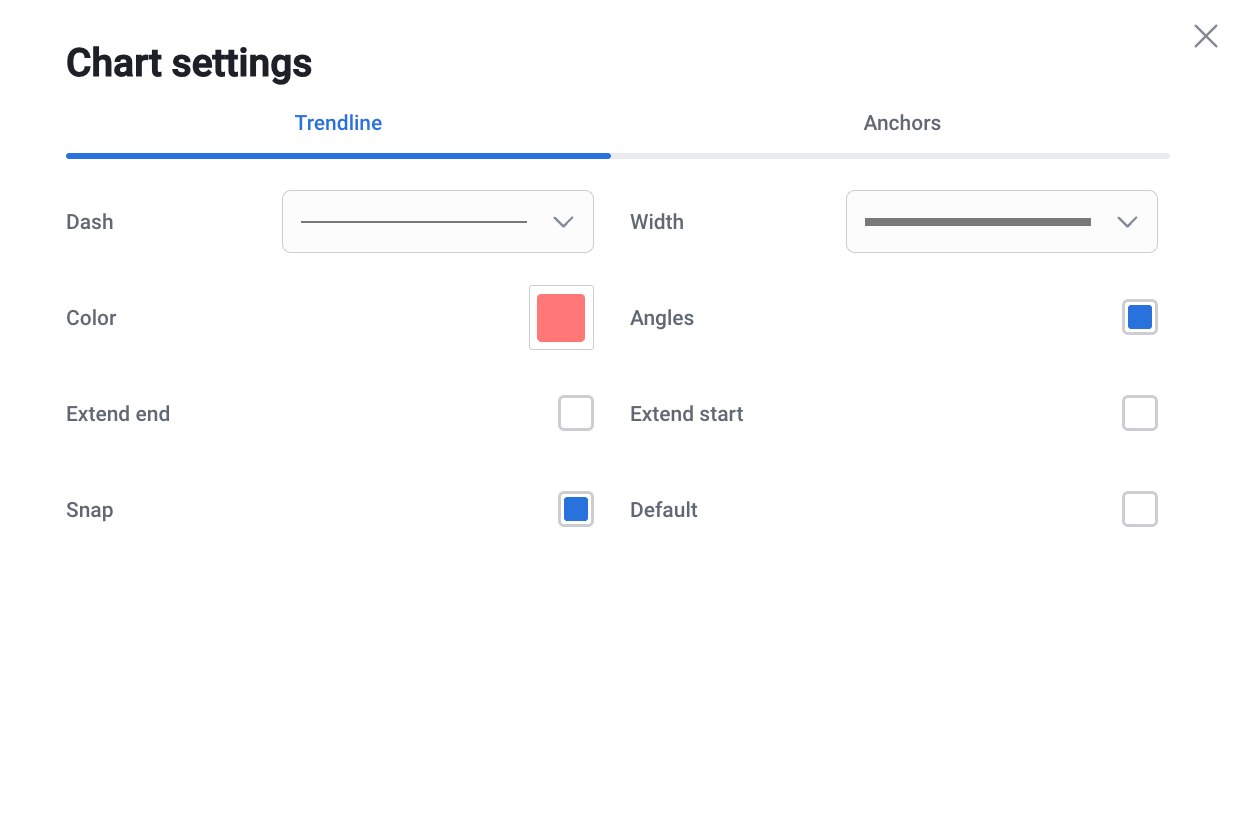
2. The Chart settings window will open automatically.
3. Adjust the desired parameters.
Each trendline can be edited independently. Changes made to one trendline do not affect other trendlines on the chart.
The following settings are available for each trendline:
Dash — change the line style.
Width — adjust the line thickness.
Color — select a custom line colour.
Angles — display or hide the line angle.
Extend start — extend the line beyond its starting point.
Extend end — extend the line beyond its ending point.
Snap — align anchor points to chart values.
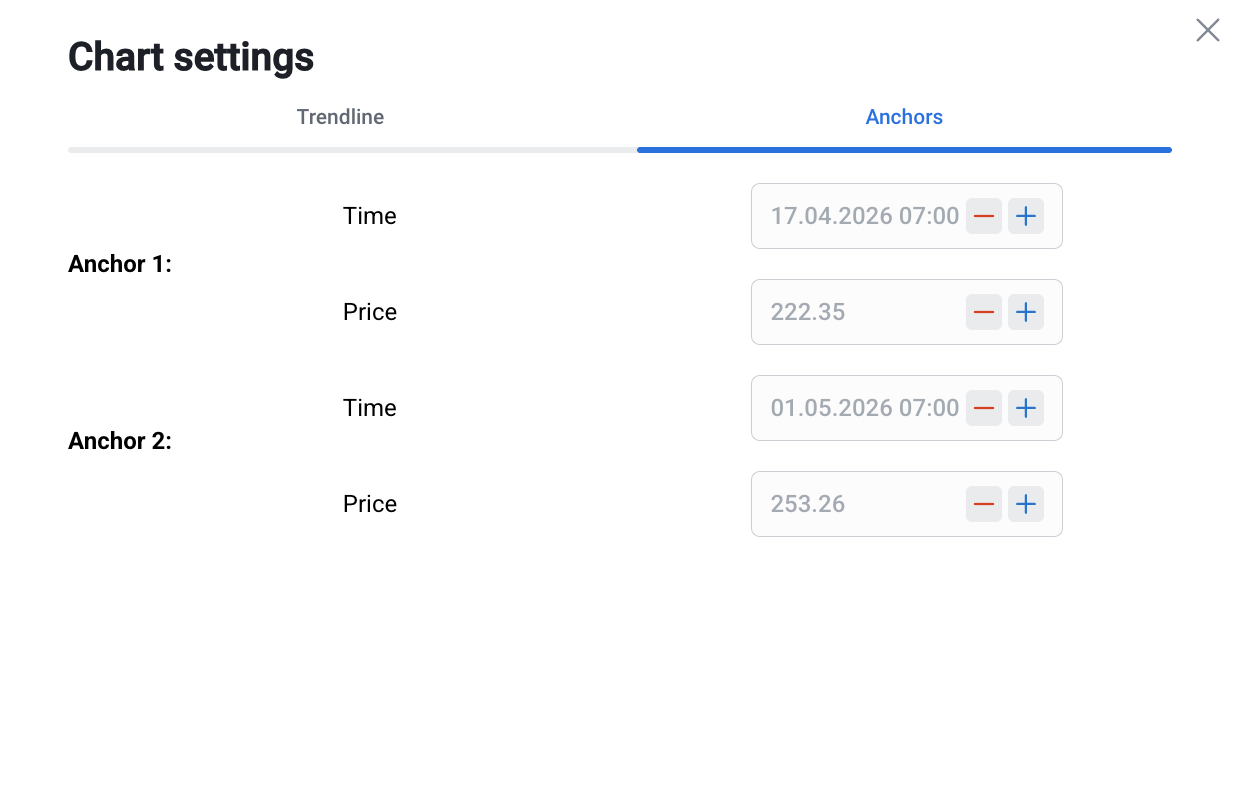
You can also modify the trendline anchor points in the Anchors tab of the Chart settings window.