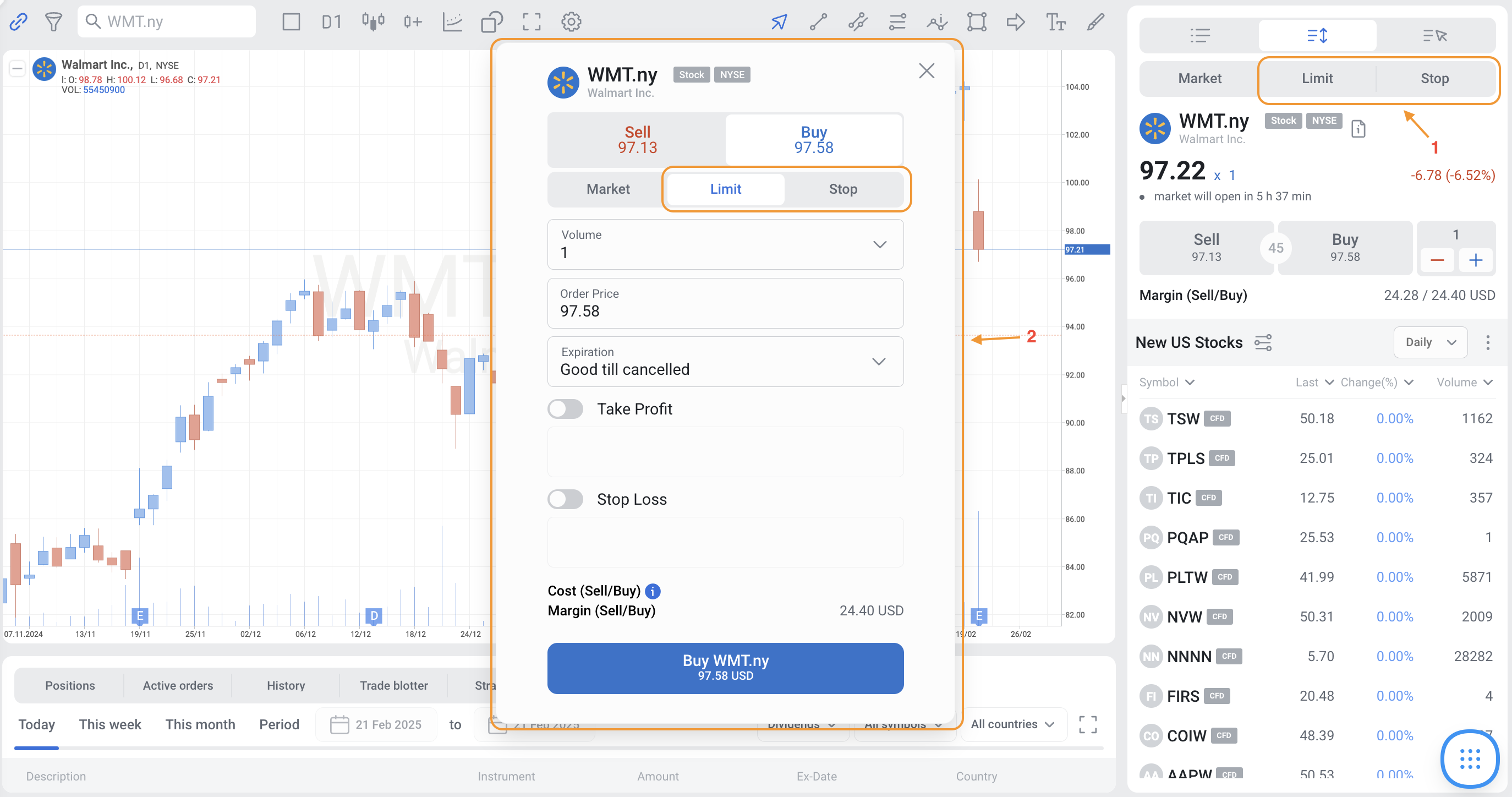
1. You can place pending orders by using the Limit and Stop buttons on the trading panel. In the window that unfolds, choose the type of your order, trading direction, price, and volume.
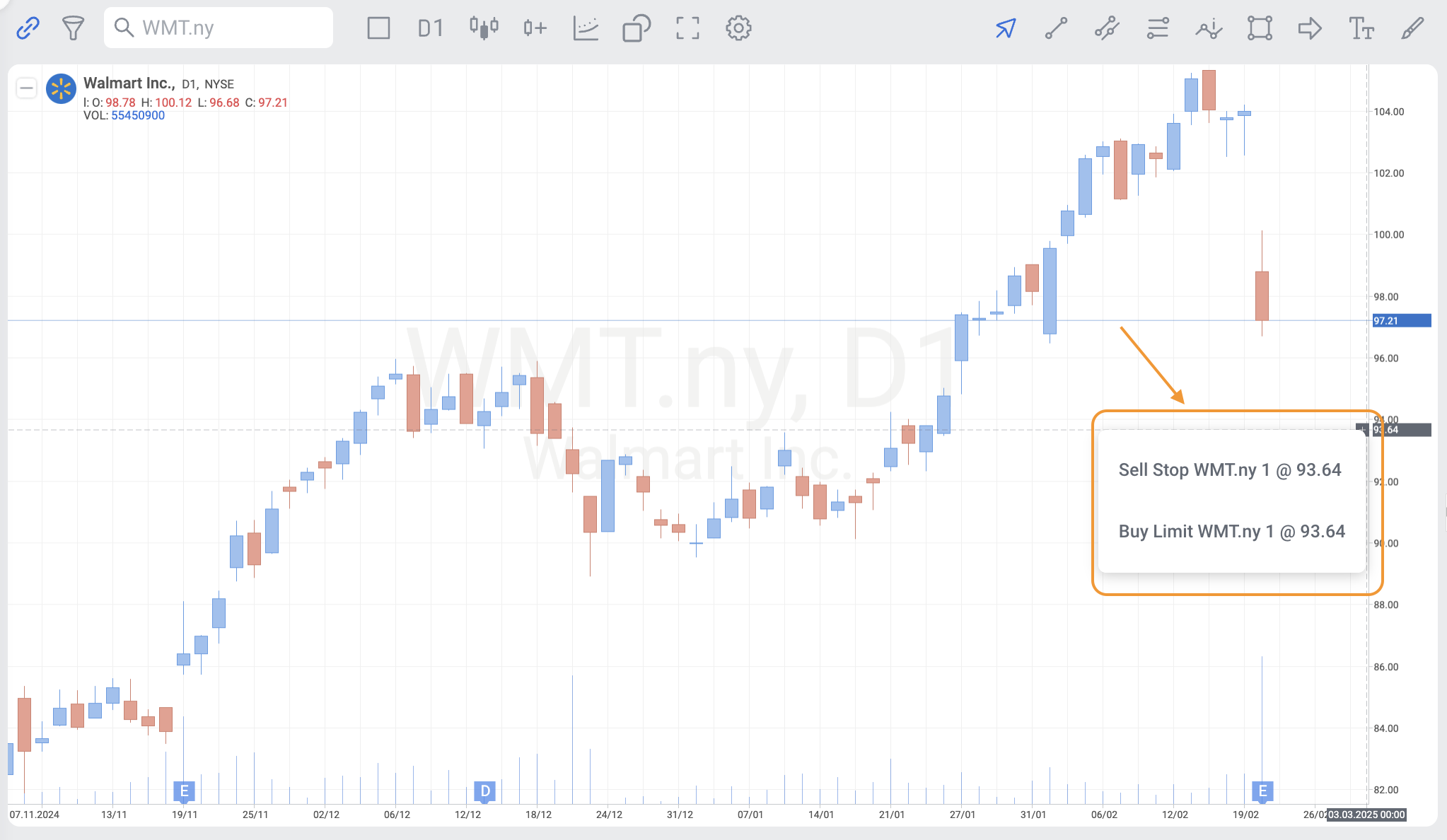
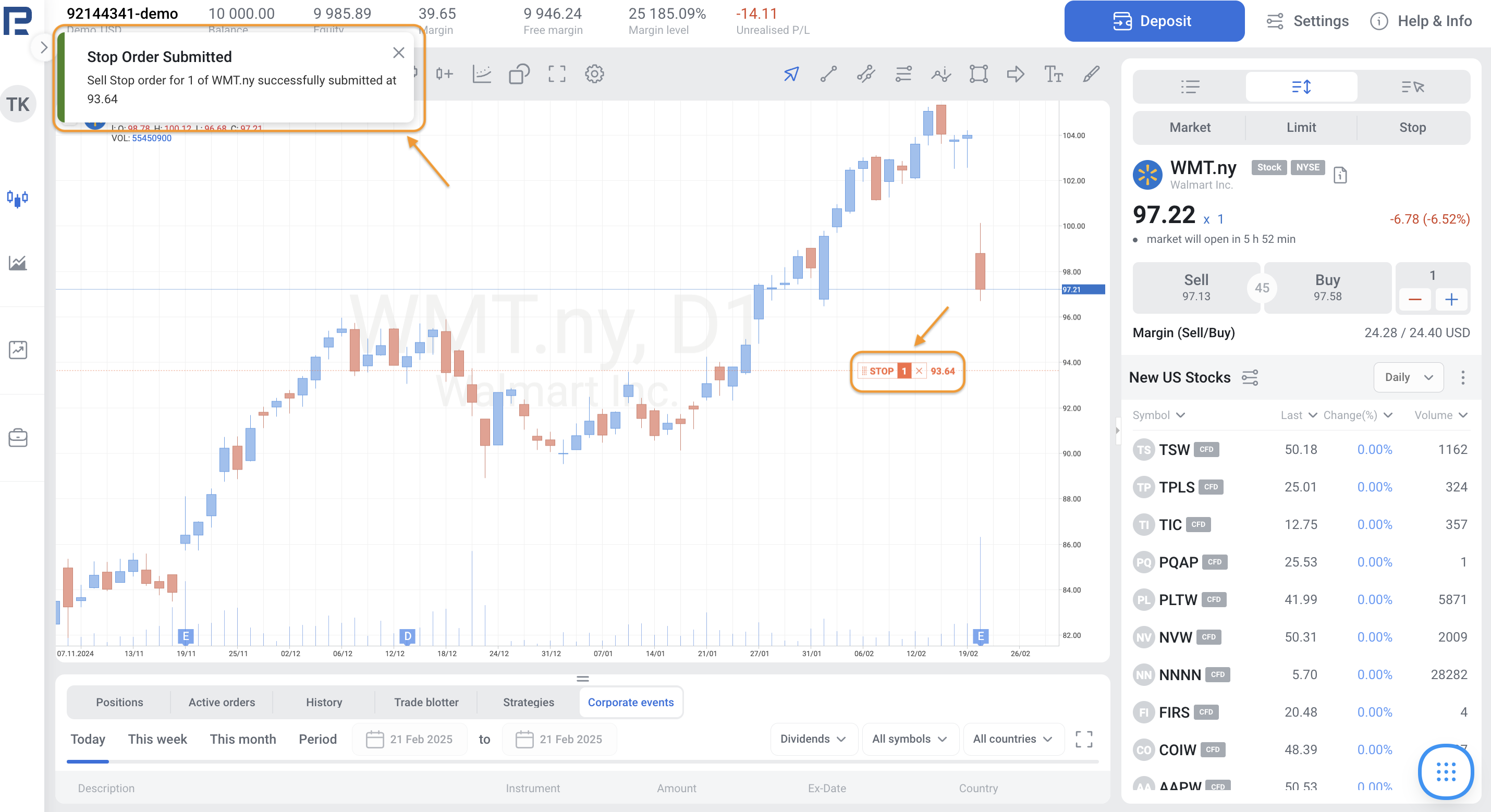
2. An even easier way is put the cursor on the desired quotation on the price scale of the asset and click the "+" symbol that appears. If the quotation is above the current price, the program will suggest Buy Stop and Sell Limit orders to choose from. If the quotation is below the current price, choose between Sell Stop and Buy Limit.
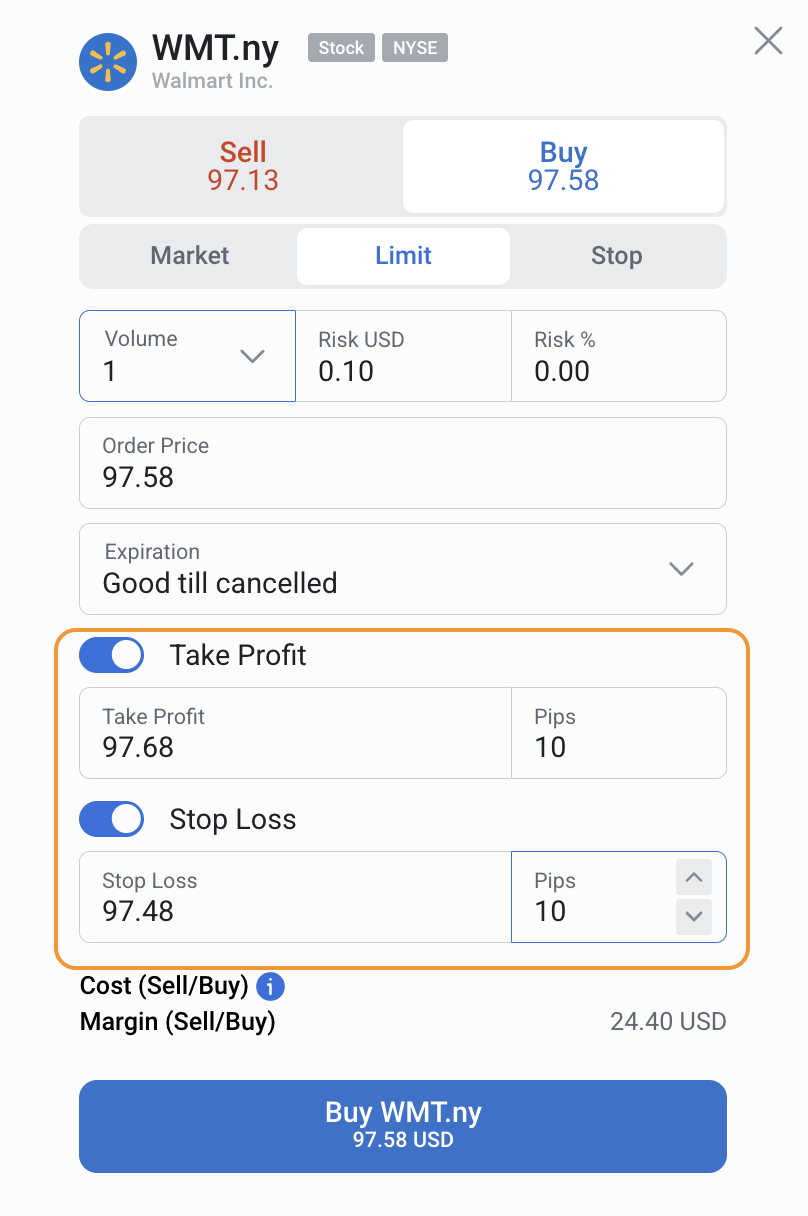
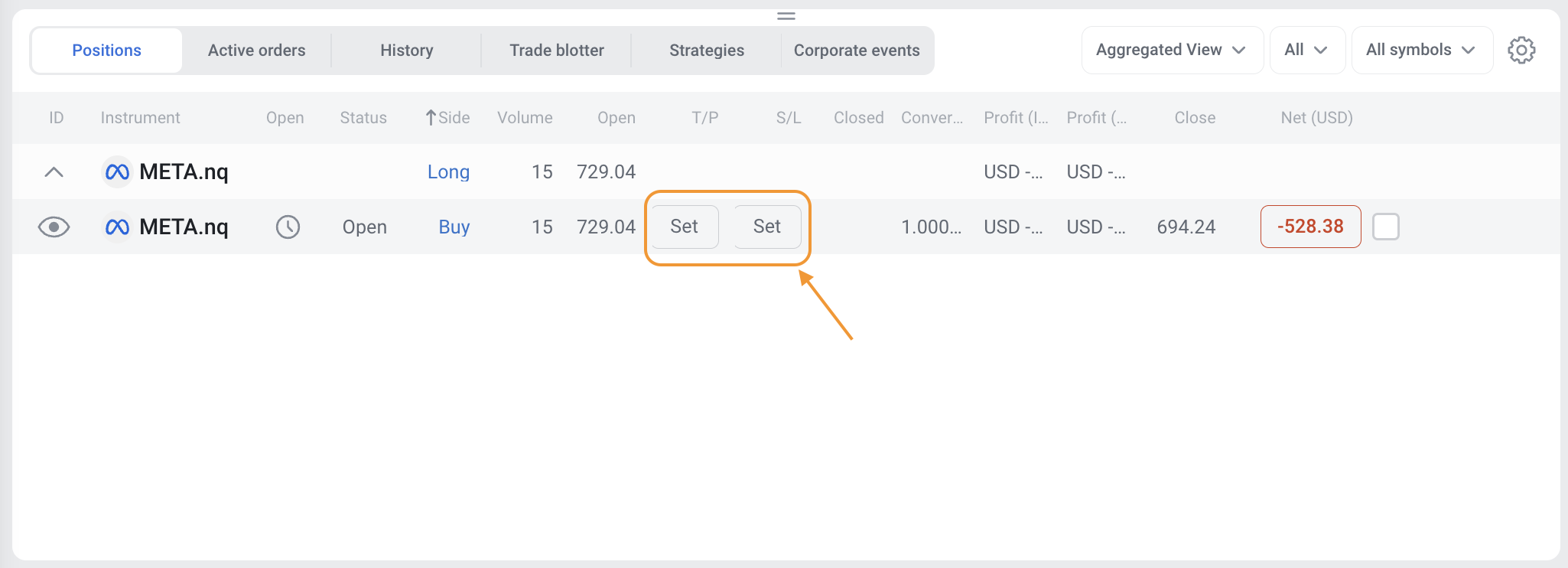
3. Pending closing orders – Stop Loss and Take Profit – can be placed in the trading window from the start, or added later in the current position window in the T/P and S/L columns by the SET button.
Why SL and TP lines are not visible after placing a pending order
If you set Stop Loss (SL) and Take Profit (TP) when placing a pending order, these levels are correctly saved with your order. However, they are not shown on the chart immediately. This is expected behavior in the web platform.
SL and TP lines will appear only after:
- the pending order is triggered and becomes an open position
Until the order is executed, it remains in a pending state, and no chart lines are displayed.
Important to know
- SL and TP are already attached to your pending order and remain active
- No settings are missing or reset
- Chart lines are only displayed for active (opened) positions
- Once the order is executed, SL and TP lines will automatically appear on the chart
If you still don’t see SL/TP lines after execution
Please check:
- You are viewing the correct instrument chart
- The position is actually opened (not pending)
- Refresh the chart or reload the platform